> For the complete documentation index, see [llms.txt](https://cellhasher.gitbook.io/docs/llms.txt). Markdown versions of documentation pages are available by appending `.md` to page URLs; this page is available as [Markdown](https://cellhasher.gitbook.io/docs/cellhasher-control/tabs-walkthrough/miner.md).

# Miner

***

<figure><img src="/files/juRhZ9J6juUebUMht97J" alt=""><figcaption><p>View of the Miner tab</p></figcaption></figure>

***

## Overview of the Miner Dashboard

The Miner Dashbaord is made of 3 tabs:

[Assignments](#assignments) → Manage bulk device assignments and run miners

[Flightsheets](#flightsheets) → Configure pools, wallet addresses, and algorithms

[Miner Types](#miner-types) → Create or edit miner logic (install, run, stop scripts)

***

## Assignments

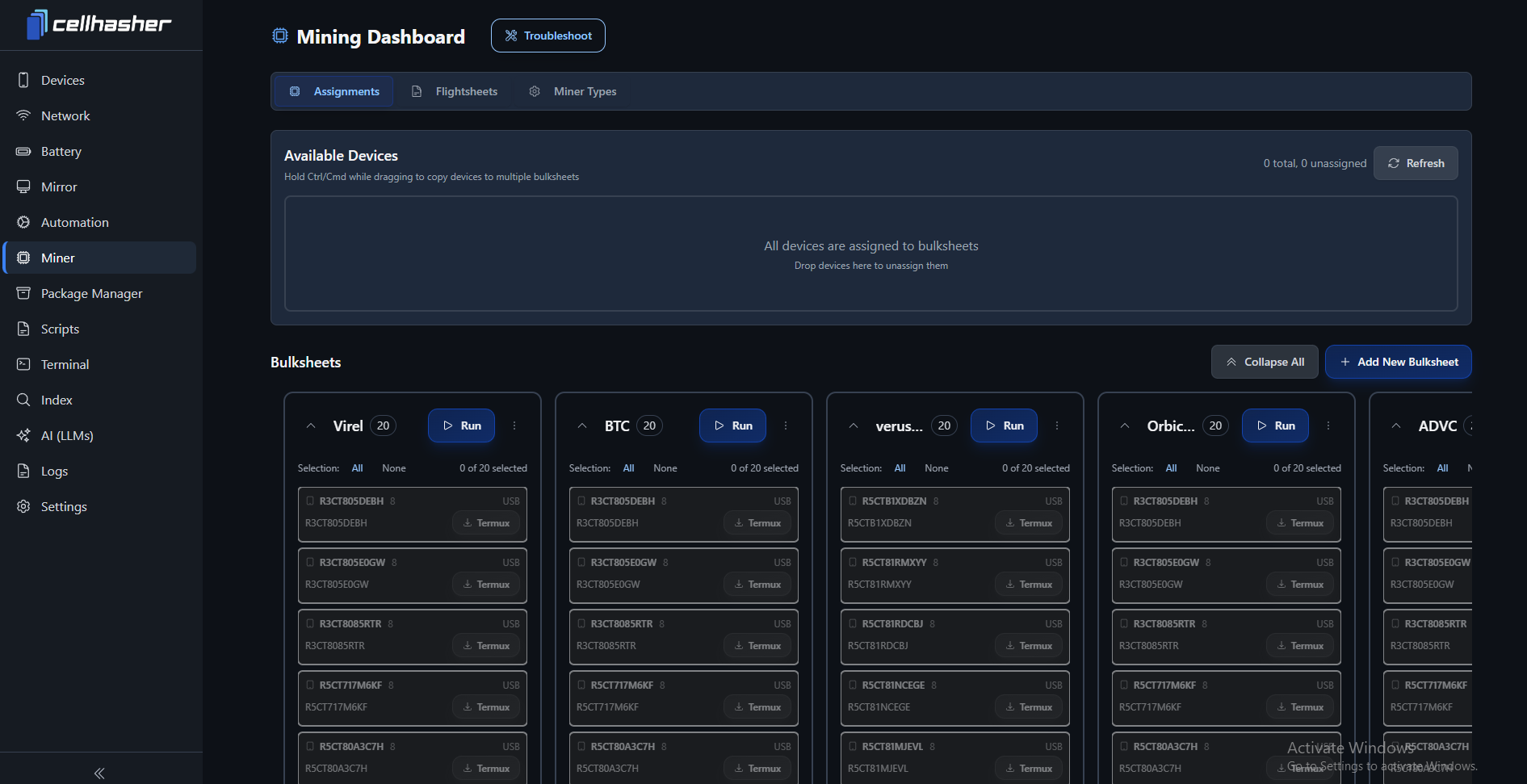
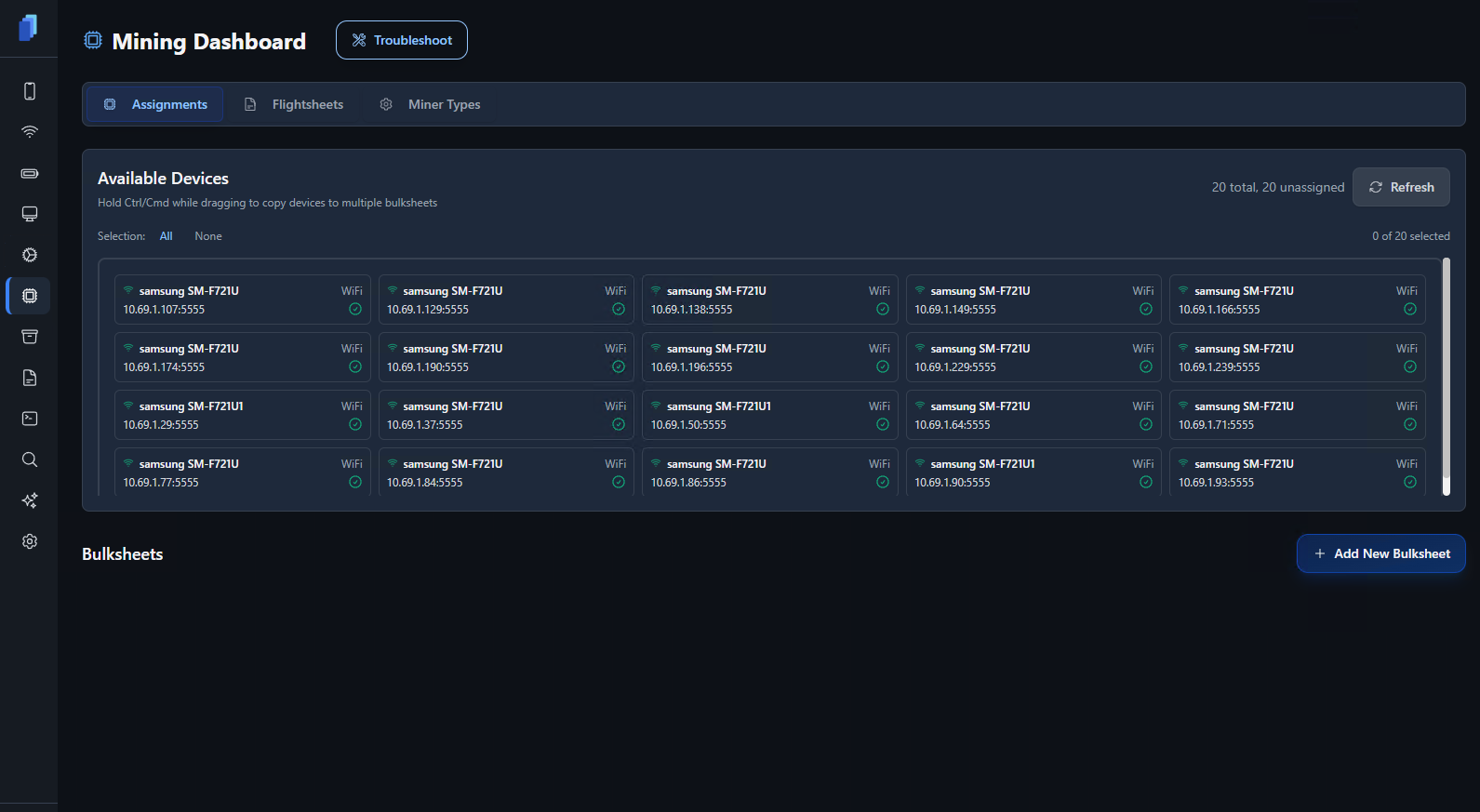
The **Assignments tab** shows connected devices ready to be assigned to bulk mining sheets. Each device displays its model, IP, and connection type.

Note: Greyed out bulksheets as shown in the image above simply mean the device is not connected to the manager software.

<figure><img src="/files/sF0u9EZG0cRE38t8Qb2e" alt=""><figcaption></figcaption></figure>

***

## Flightsheets

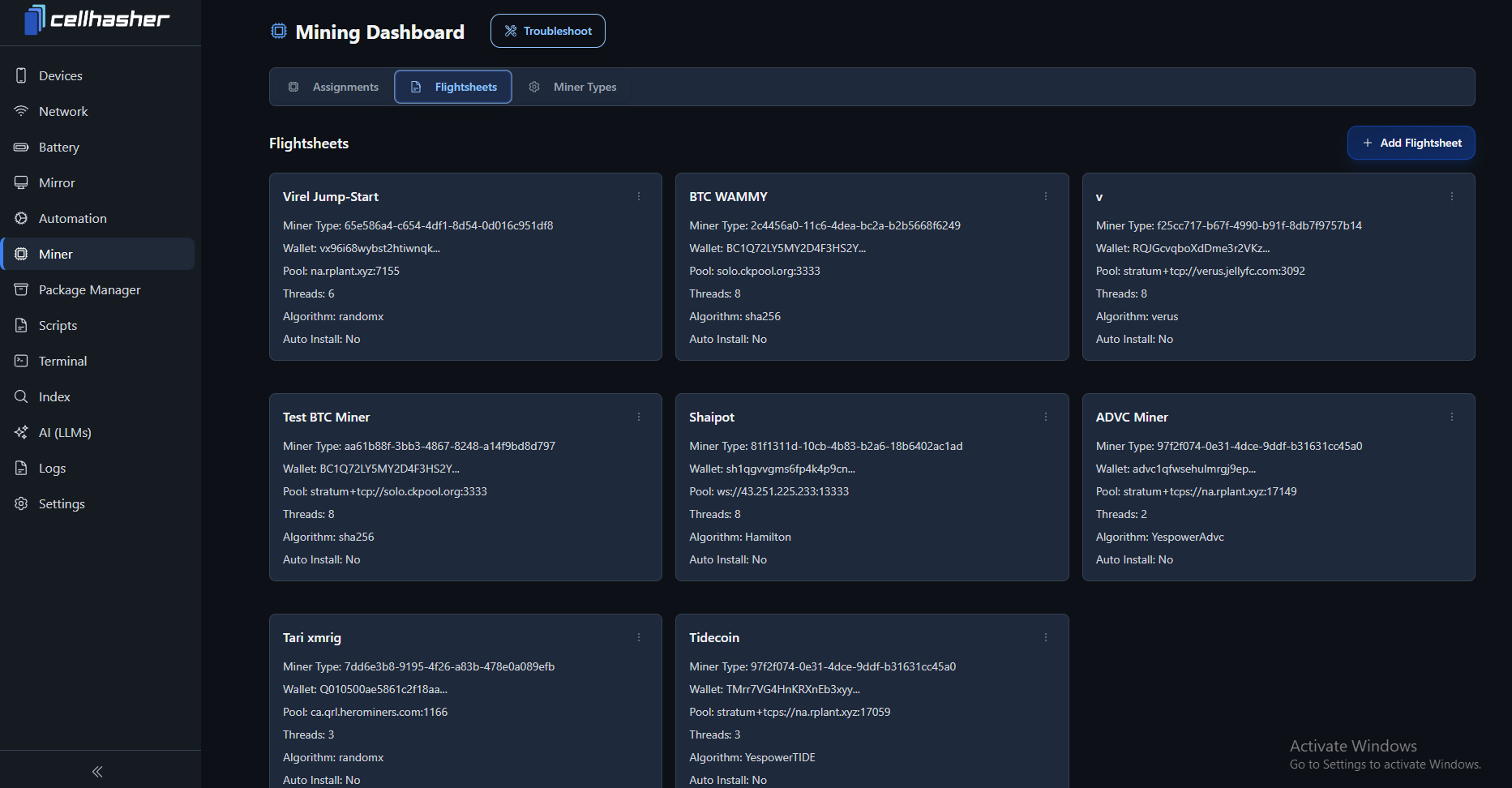
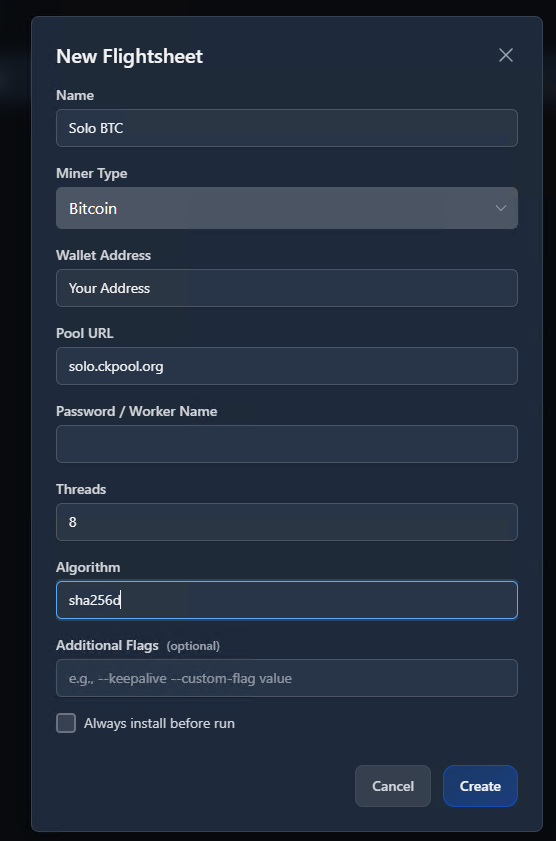
A **Flightsheet** defines how your miner runs — including algorithm, pool URL, wallet address, and thread count.

<div><figure><img src="/files/4Lr97rBWE94OlyIAvLgz" alt=""><figcaption></figcaption></figure> <figure><img src="/files/kydjuSopP064ipGN2Yh9" alt=""><figcaption></figcaption></figure></div>

> Example of creating a **Solo BTC Flightsheet**, defining miner type, pool, wallet, and other configuration details.

#### Creating a Bulksheet

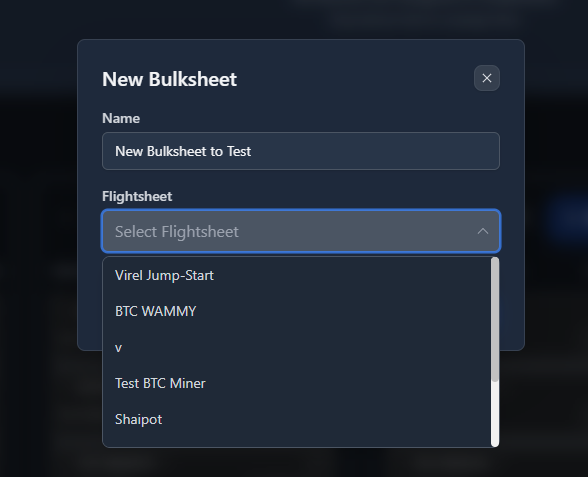
Each **Bulksheet** is a collection of devices running the same Flightsheet.\
You can create multiple bulksheets for different coins or miner types.

<figure><img src="/files/1borgVz9LvVZb3xiB0JS" alt=""><figcaption></figcaption></figure>

> All available devices are listed at the top. You can drag and drop devices into a new Bulksheet or hold Ctrl/Cmd to duplicate them across multiple sheets.

<figure><img src="/files/sF0u9EZG0cRE38t8Qb2e" alt=""><figcaption></figcaption></figure>

> Example of configured bulksheets for BTC, Verus, Virel, and more — each containing 20 devices.

<figure><img src="/files/r1jamEbk30GnCodZgEvS" alt=""><figcaption></figcaption></figure>

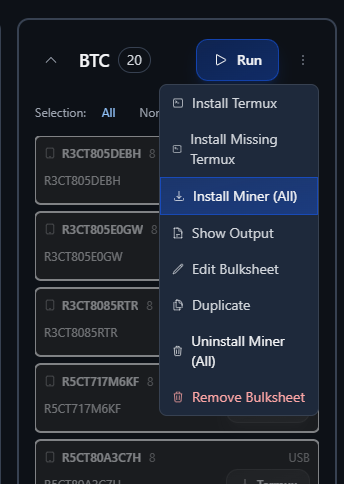
> Use the 3-dot menu to install miners, install Termux, uninstall, or duplicate bulksheets. You can install miners on all 20 devices simultaneously.

***

## Miner Types

The **Miner Types** tab lets you edit or create miner logic —\
Each miner has **Install**, **Run**, **Stop**, and **Uninstall** scripts, typically written in Python.\
(Must setup Miner Types first for any of the flightsheet,running,bulksheets to work)

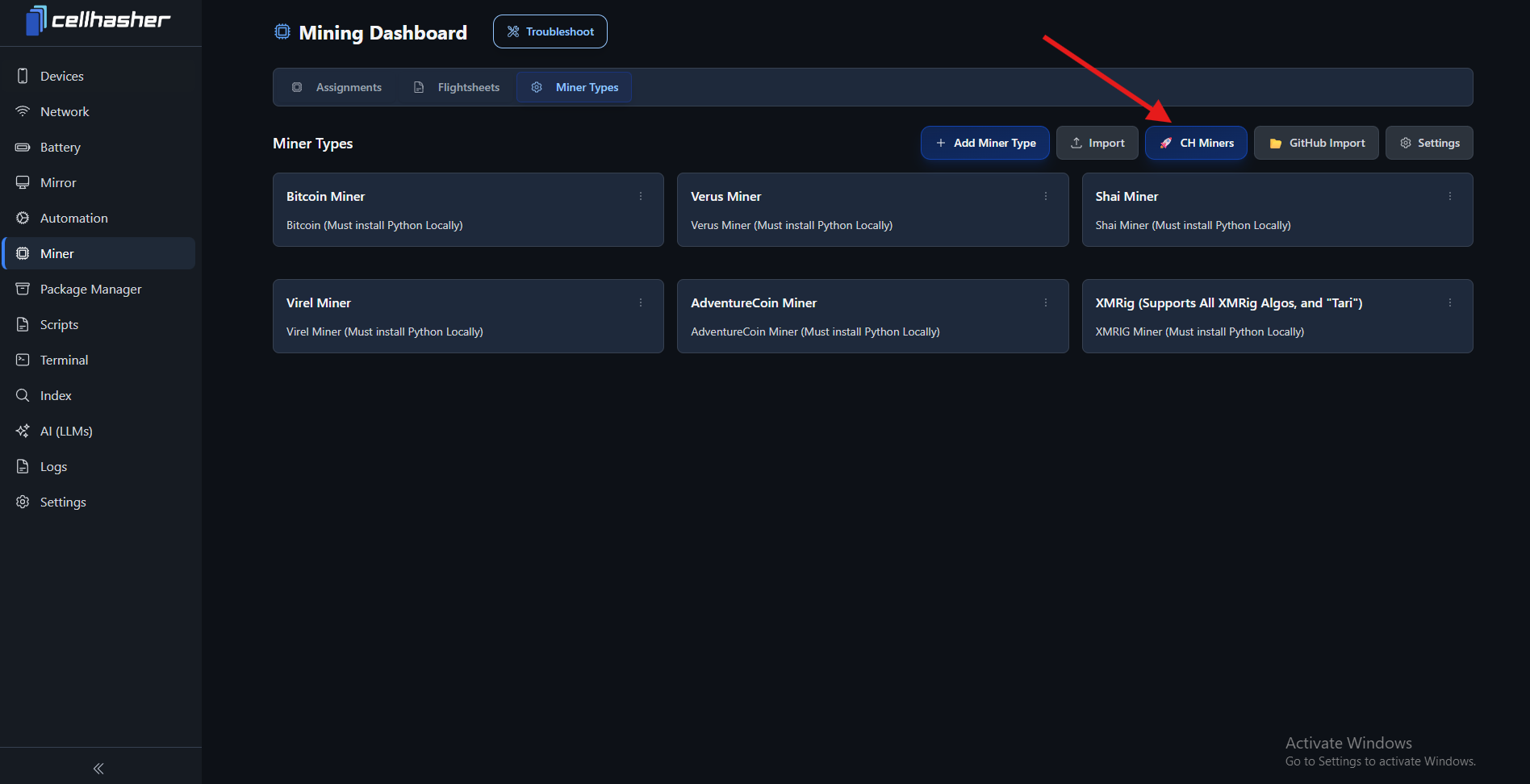
> ✅ Our Pre-Made Miner Types Require you to have python path setup in the Settings Page

<figure><img src="/files/4tHwmyhvnLuintkGftYt" alt=""><figcaption><p>Use <strong>CH Miners</strong> to quickly import ready-to-use miner templates from CellHasher’s GitHub.</p></figcaption></figure>

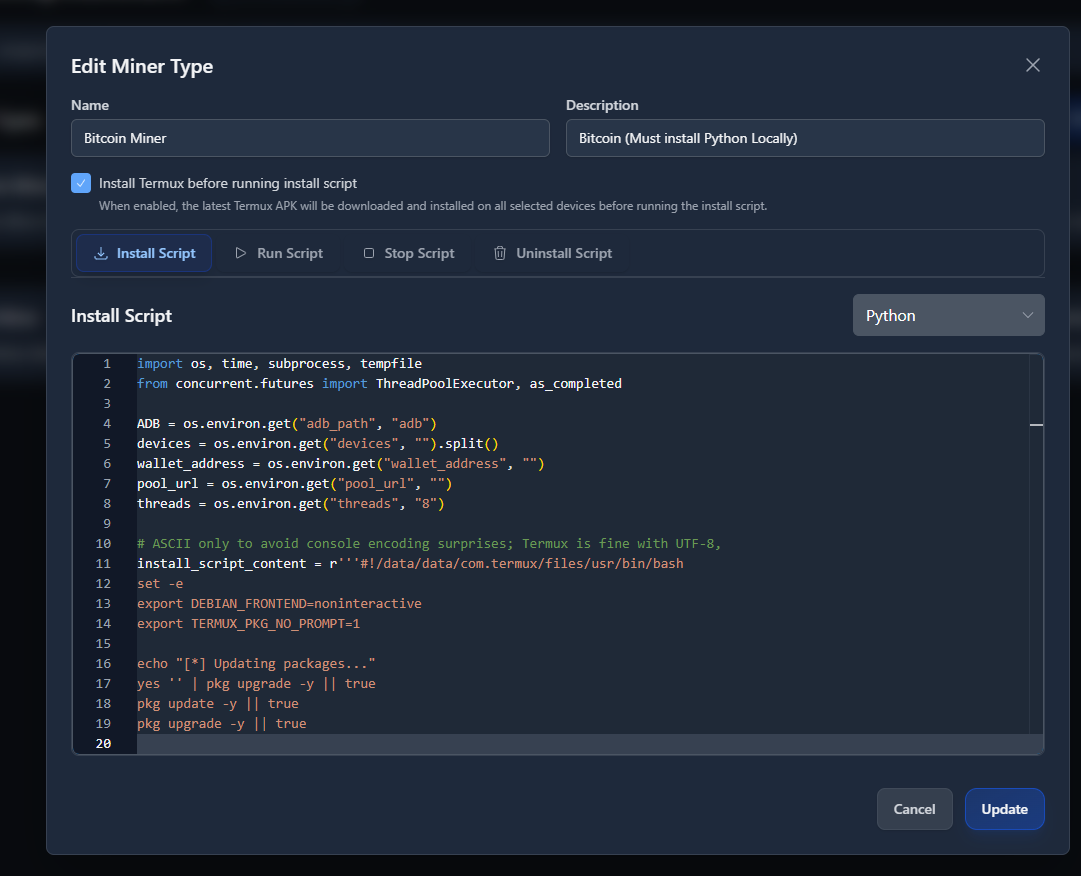
<figure><img src="/files/m9UNMsDZNkZvz25HHmlr" alt=""><figcaption><p>Example: Editing a Bitcoin miner type. You can customize commands, add dependencies, and manage install logic. Note, you do not need lines 4-8 in the install script, but do want them in the (Run Script) if you make your own script, this communicates with our environment flight sheets.</p></figcaption></figure>

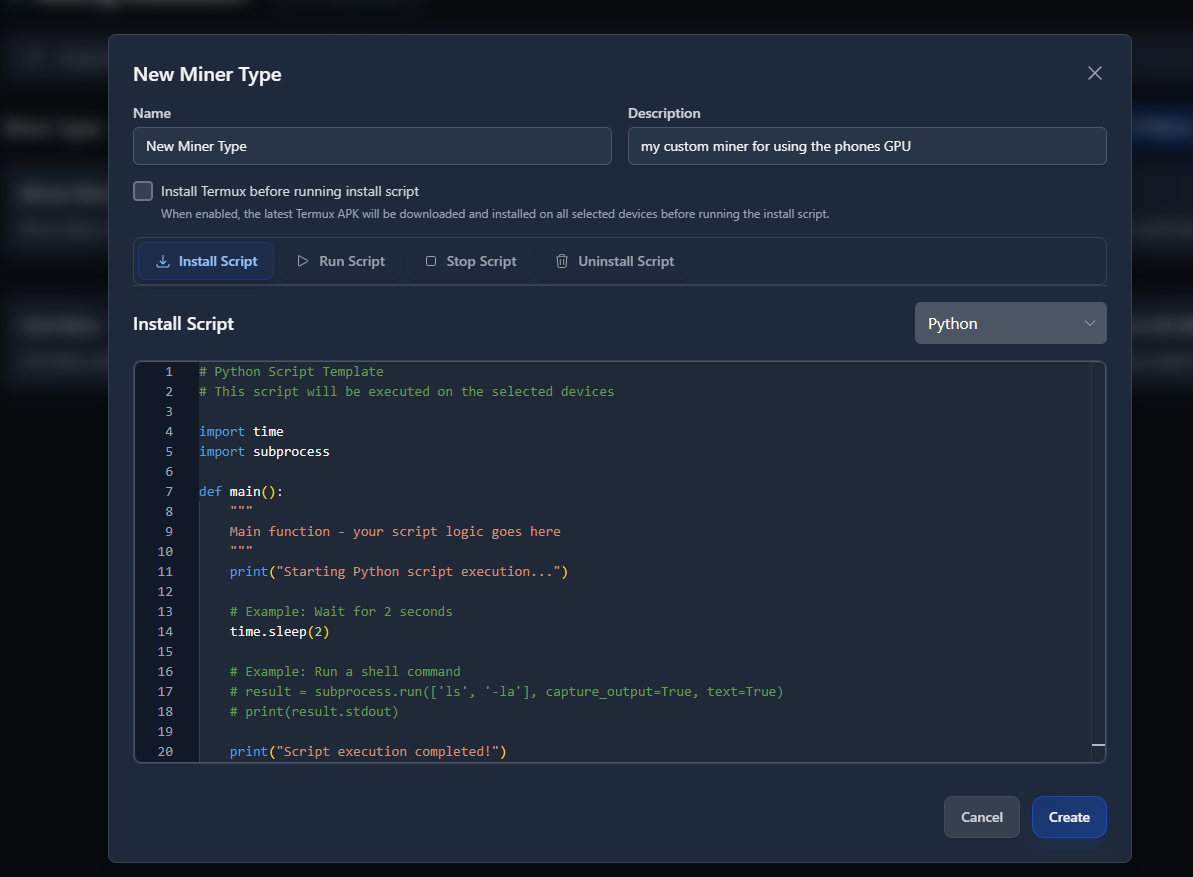
<figure><img src="/files/05E14B3I2FcItprlfXqq" alt=""><figcaption><p>Creating a new Miner Type from scratch — includes a Python script template ready for custom miner logic.</p></figcaption></figure>

***

### Step-by-Step: Begin Mining

1. **Install First** → Ensure the latest version of CellHasher is installed.
2. **Set Up Flightsheet** → Add your wallet, pool, and miner type under *Flightsheets*.
3. **Assign Devices** → Go to *Assignments*, drag devices into your preferred Bulksheet.
4. **Install Miner** → Click the 3-dot menu → *Install Miner (All)*.
5. **Run the Bulksheet** → Once installed, hit *Run* to start mining.
6. **Monitor Progress** → Use *Detached Mirror Window* to view screens, or use **v0.3** for low-end mirror-only control.
7. **(Optional)** Multi-task → With *wake-locks* enabled, miners can run while you use apps like **Grass** or **Acurast**.
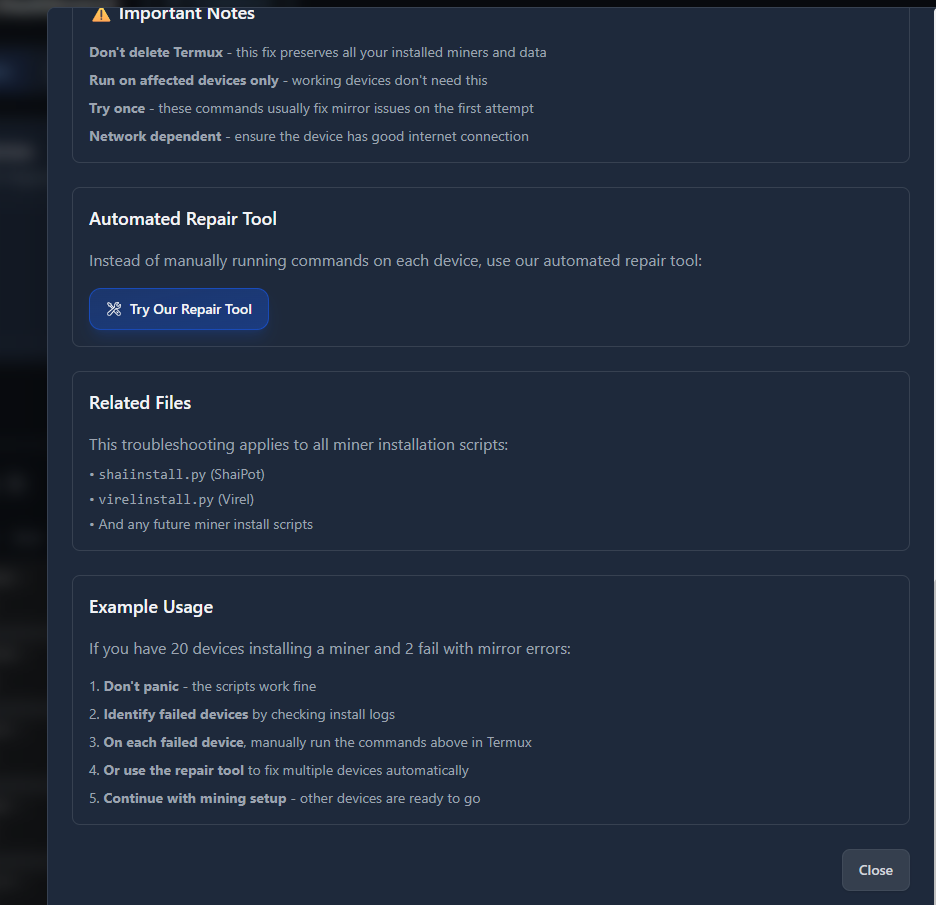
8. If a Miner doesn't install its more than likely okay, just need to clear it on the device the uninstall script, select the devices you want to run it on in the Bulksheet, open the 3 dots menu and uninstall the miner/install the miner, use the repair tool as well if needed.

***

### Setting Up Your Miner Scripts

Each miner has **Install**, **Run**, **Stop**, and **Uninstall** scripts that define how it behaves on your devices.\
When writing these scripts, always include the system environment variables so your miner automatically receives configuration data from your Flightsheets.

**Base variables:**

```python
ADB = os.environ.get("adb_path", "adb")
devices = os.environ.get("devices", "").split()
wallet_address = os.environ.get("wallet_address", "")
pool_url = os.environ.get("pool_url", "")
threads = os.environ.get("threads", "8")
algorithm = os.environ.get("algorithm", "")
password = os.environ.get("password", "")
additional_flags = os.environ.get("additional_flags", "")
```

**For XMRig miners, also add:**

```python
cpu_max_threads_hint = os.environ.get("cpu_max_threads_hint", "")
xmrig_algorithm = os.environ.get("xmrig_algorithm", "")
custom_flags = os.environ.get("custom_flags", "")
```

These are automatically injected from your **Flightsheets** whenever you install or run miners, allowing fully dynamic setups without modifying your code.\
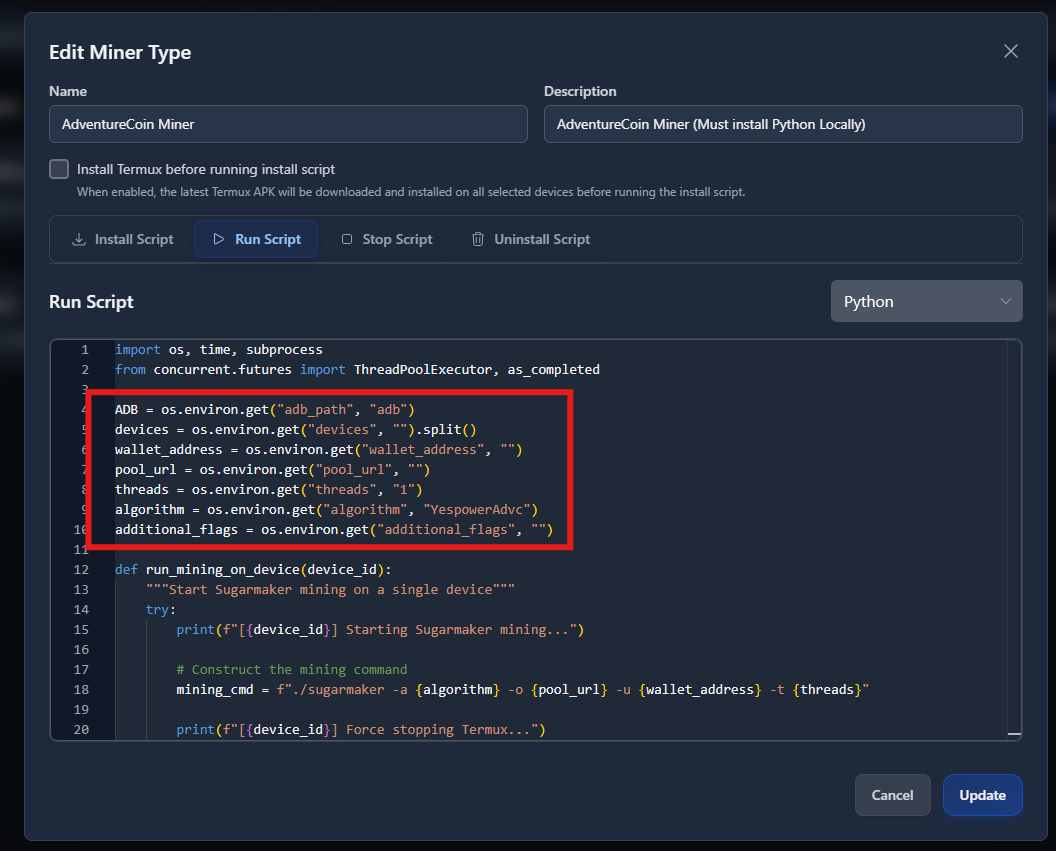
The install script usually prepares Termux and downloads dependencies, while the run script executes your miner with the provided pool, wallet, and thread count.

<figure><img src="/files/F7QDRx7xYkzRuJQKB5wm" alt=""><figcaption></figcaption></figure>

> Example: ADVC miner type showing environment-driven install logic in Python.

### Advanced Features

* Create **custom miner types** with Python logic
* Import **CH Miners** from GitHub
* Edit, duplicate, or delete existing flightsheets
* Install or repair Termux automatically
* Use the **Repair Termux (pkg cache)** tool from the Scripts page if any installation fails

***

### Troubleshooting

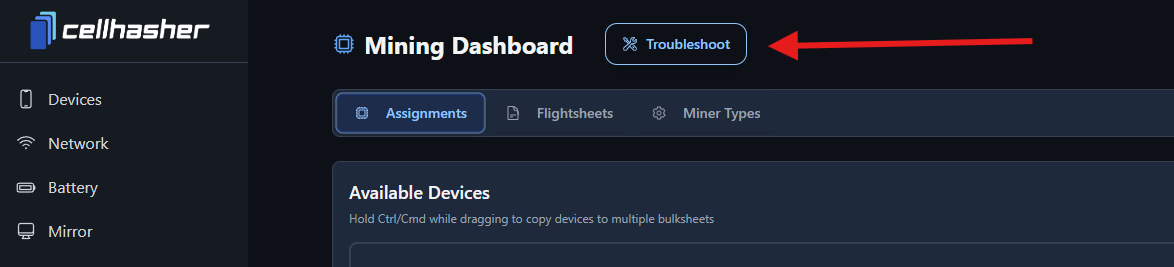
The Troubleshoot Tab includes a “Try Our Repair Tool” button for automated fixes. Sometimes, when installing miners on multiple devices, one or two may fail due to mirror errors or slow internet. (Troubleshoot Button is located at the top of the Miner page.) Use the **Automated Repair Tool** instead of reinstalling manually.

<figure><img src="/files/CTNVRWlVyspctUSwuF1x" alt=""><figcaption></figcaption></figure>

<figure><img src="/files/5XnWTdOFFYulEtpCVYDI" alt=""><figcaption></figcaption></figure>


---

# Agent Instructions
This documentation is published with GitBook. GitBook is the documentation platform designed so that both humans and AI agents can read, navigate, and reason over technical content effectively. Learn more at gitbook.com.

## Querying This Documentation
If you need additional information that is not directly available in this page, you can query the documentation dynamically by asking a question.

Perform an HTTP GET request on the current page URL with the `ask` query parameter, and the optional `goal` query parameter:

```
GET https://cellhasher.gitbook.io/docs/cellhasher-control/tabs-walkthrough/miner.md?ask=<question>&goal=<endgoal>
```

`ask` is the immediate question: it should be specific, self-contained, and written in natural language.
`goal` is optional and describes the broader end goal you are ultimately trying to accomplish on behalf of the user. GitBook uses it to tailor the answer towards what is most useful for that goal.

The response will contain a direct answer to the question and relevant excerpts and sources from the documentation.

Use this mechanism when the answer is not explicitly present in the current page, you need clarification or additional context, or you want to retrieve related documentation sections.