# Network

***

### Selecting Devices

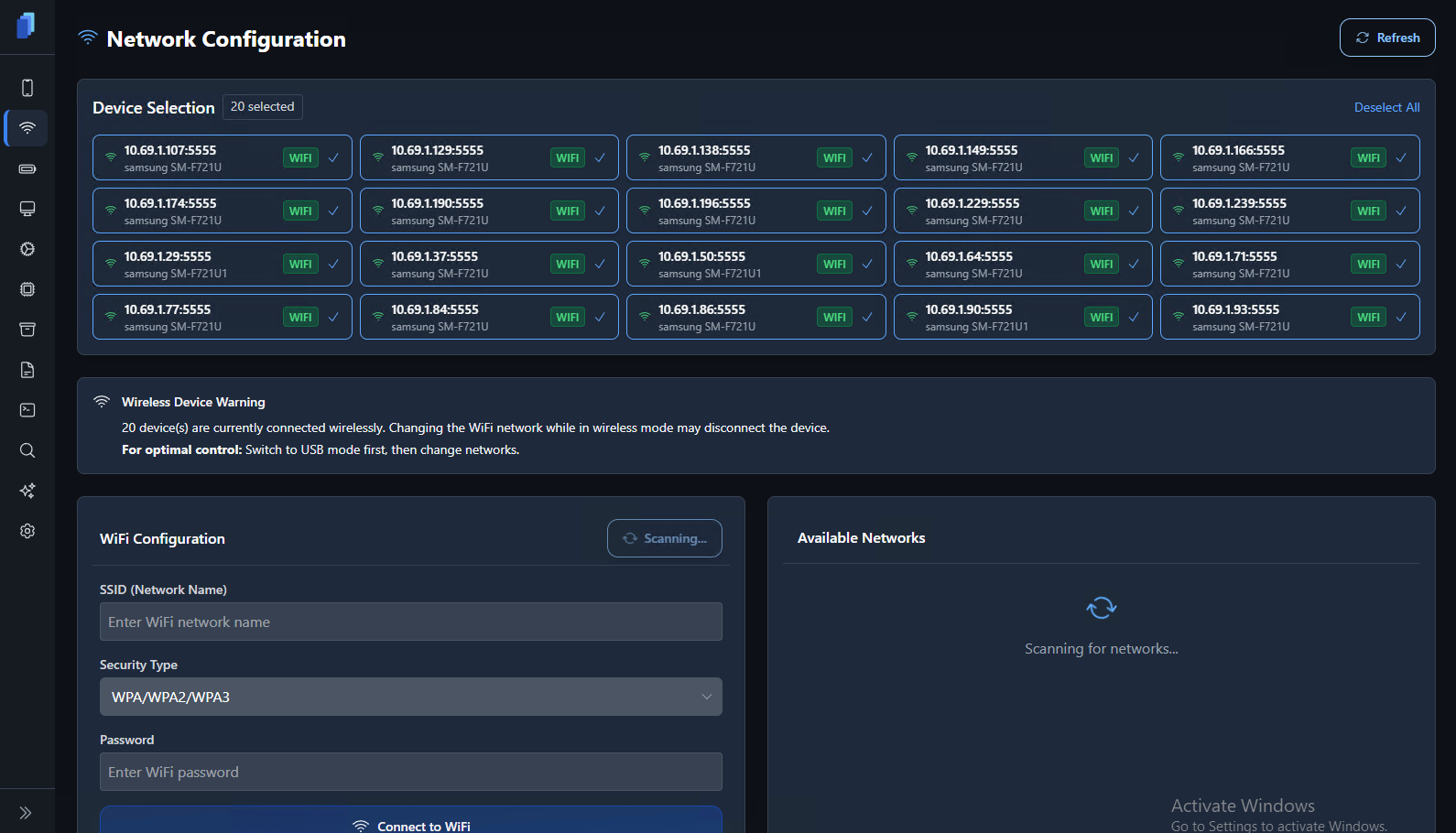
At the top of the page, you’ll find the Device Selection panel, which lists all detected Android devices. Each card displays:

* **Device ID / IP address**
* **Connection type** (Wi-Fi, USB, or LAN)
* **Model name** (e.g., `samsung SM-F721U`)
* **Status indicator** confirming connectivity

You can:

* **Select all** to configure every device at once
* **Select specific devices** for individual Wi-Fi setup

***

### Connecting Devices to Wi-Fi

The Wi-Fi Configuration section allows you to input network details. The Available Networks panel on the right scans nearby Wi-Fi SSIDs, which you can select instead.

<table><thead><tr><th width="243">Field</th><th>Description</th></tr></thead><tbody><tr><td><strong>SSID (Network Name)</strong></td><td>Enter your Wi-Fi network name or select from the list of scanned networks. If it contains spaces, you may need to wrap it in quotes <code>"My WiFi Network"</code>.</td></tr><tr><td><strong>Security Type</strong></td><td>Choose the correct encryption (use <code>WPA/WPA2/WPA3</code> for default)./</td></tr><tr><td><strong>Password</strong></td><td>Enter the Wi-Fi password.</td></tr><tr><td><strong>Connect to WiFi</strong></td><td>Your devices will attempt to connect to the network.</td></tr></tbody></table>

> **Example Workflow:**
>
> 1. Connect devices via USB.
> 2. Open Network Configuration
> 3. Select one or more devices from the list.
> 4. Choose or enter your Wi-Fi SSID and password.
> 5. Click Connect to WiFi.
> 6. Wait for the connection status to update for each device.

***

## When Not to Use

Only Network Configuration under these conditions:

* Devices are connected via USB
* You want to connect them to a new Wi-Fi network to connect to the internet

Do not use this feature if your devices are currently connected wirelessly to ADB through Wireless Debugging, whether over Wi-Fi or Ethernet. Changing networks while your devices are connected to the software in these modes will disconnect them and require using USB mode reconfigure to a network. If your devices are already in wireless mode, Cellhasher will automatically show this alert:

> “Changing the Wi-Fi network while in wireless mode may disconnect the device.”

If your devices do get disconnected, refer to [connection-modes-wi-fi-and-ethernet.md](/docs/additional-docs/connection-modes-wi-fi-and-ethernet.md) to reconnect.

<figure><img src="/files/vsWjCBr7vkYyklbs38oL" alt=""><figcaption><p>You will see "WIFI" status if any devices are connected to Cellhasher Control over network.</p></figcaption></figure>

***

### Troubleshooting - Device Not Connecting

> **ℹ️ Note:** This step is often required on devices running Android 10 or higher.

If devices fail to connect to Wi-Fi, Android’s security settings may be blocking installation of the Wi-Fi helper APK. This helper app is required to transmit network credentials securely to Android.

**To fix this issue:**

1. On the device, open Settings → Developer Options.
2. Scroll down and locate Verify apps over USB.
3. Turn this off. This allows the helper APK to install correctly.

<div align="left"><figure><img src="/files/TbU52mnRfx4FYU8cXZGl" alt="" width="237"><figcaption></figcaption></figure></div>


---

# Agent Instructions: Querying This Documentation

If you need additional information that is not directly available in this page, you can query the documentation dynamically by asking a question.

Perform an HTTP GET request on the current page URL with the `ask` query parameter:

```
GET https://cellhasher.gitbook.io/docs/cellhasher-control/tabs-walkthrough/network.md?ask=<question>
```

The question should be specific, self-contained, and written in natural language.
The response will contain a direct answer to the question and relevant excerpts and sources from the documentation.

Use this mechanism when the answer is not explicitly present in the current page, you need clarification or additional context, or you want to retrieve related documentation sections.
